IPRA Submitting Requests
Submitting an IPRA Request (Records Supervisor)
Sign In as Records Supervisor
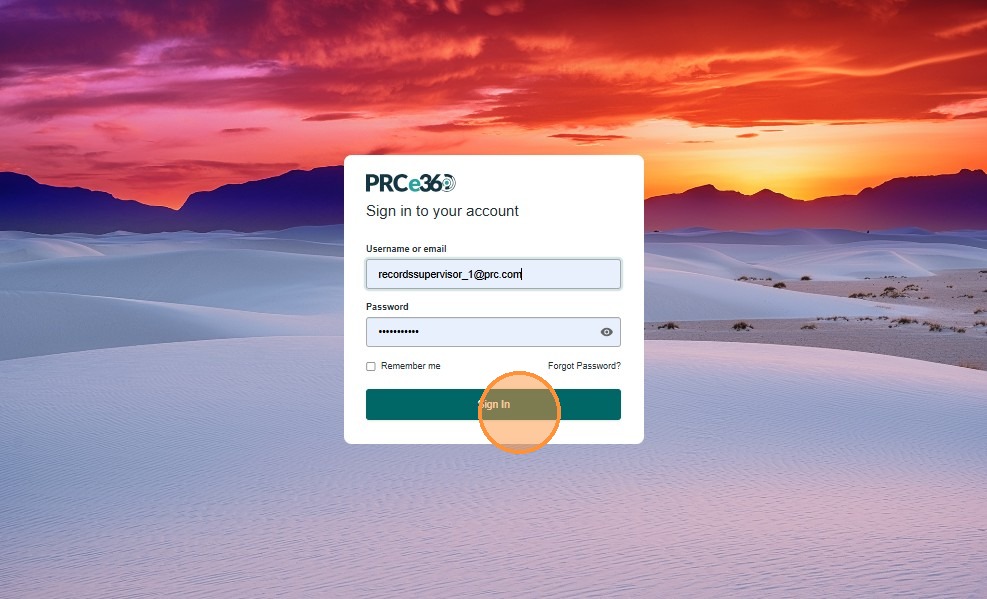
- Enter your user credentials to sign in to the application.
- Click Sign In.
Navigate to the IPRA Dashboard
-
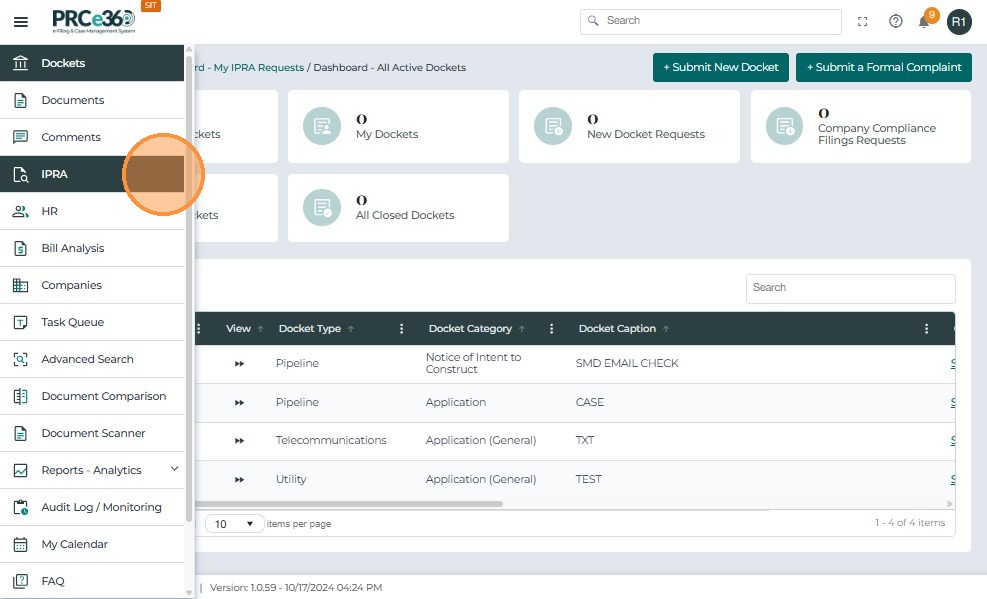
Click the side menu button.
-
Click the IPRA tab to open the IPRA dashboard.
Submit an IPRA Request
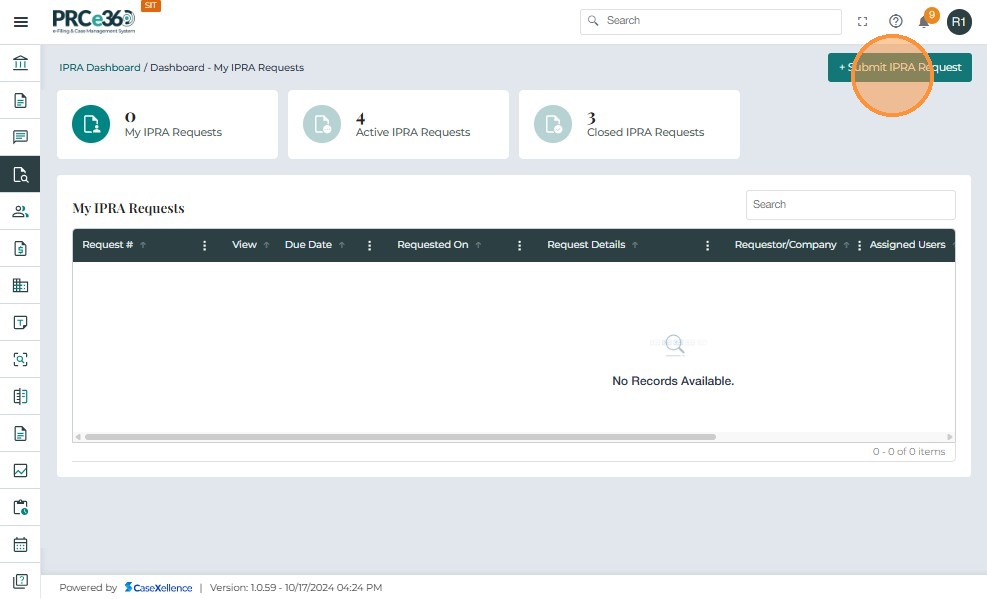
- On the IPRA dashboard, click the + Submit IPRA Request button in the top-right corner.
-
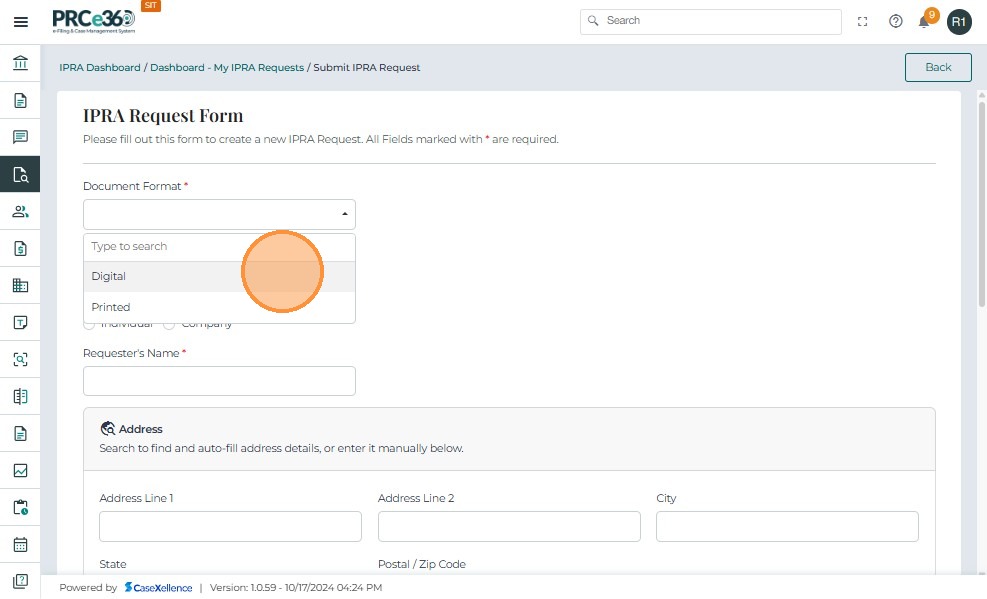
The system navigates to the IPRA Request Form.
-
Enter all required details in the form.
Document Type & Format
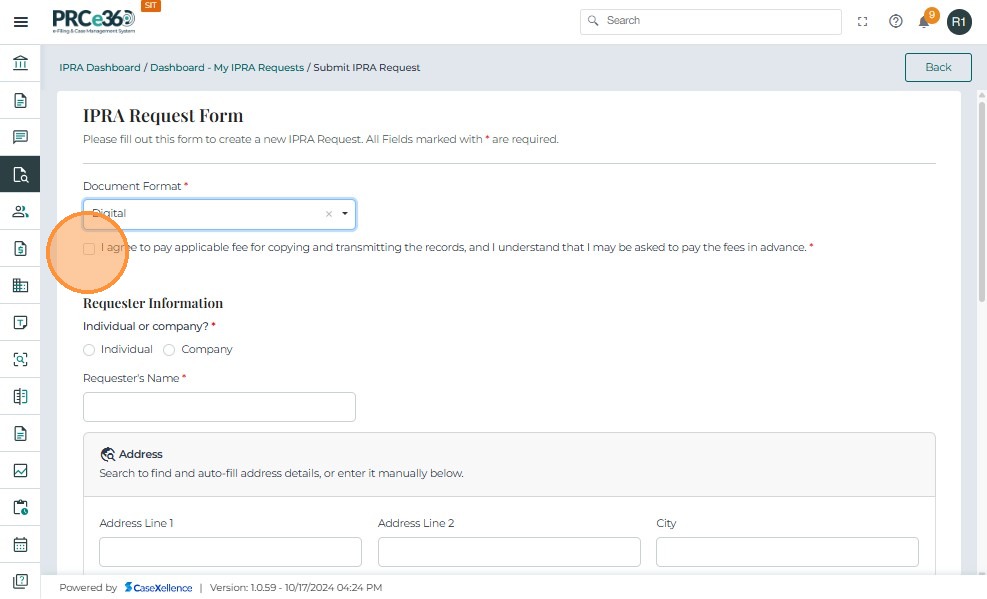
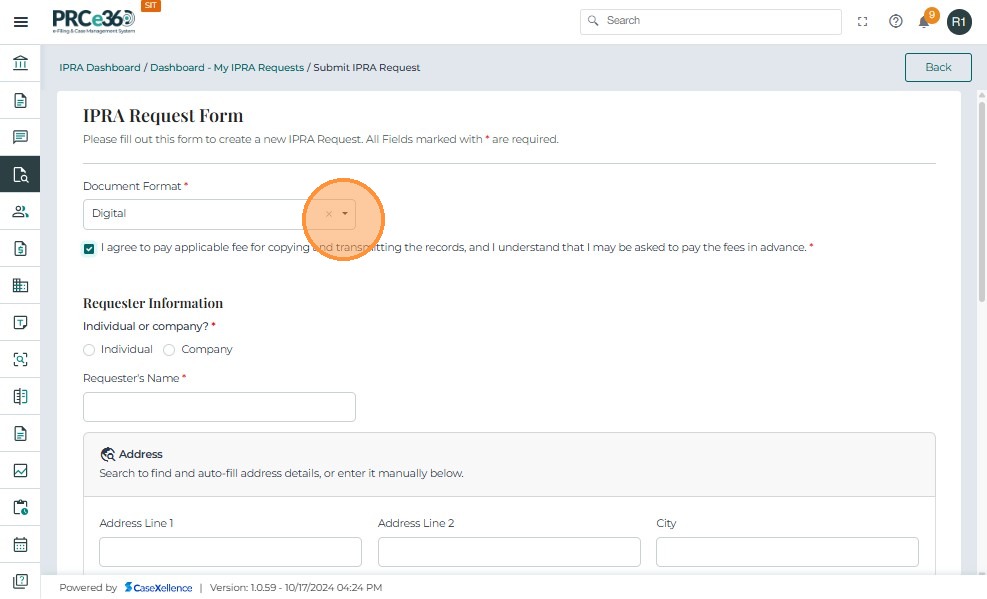
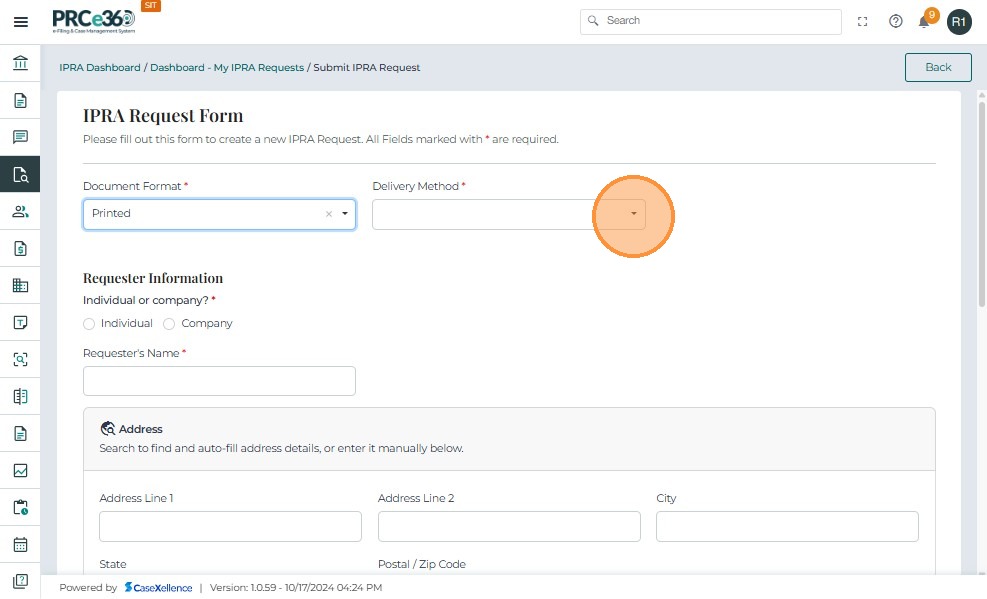
- Select the Document Format as Printed or Digital.
If Document Type is Digital
-
Confirm agreement to pay applicable fees for copying and transmitting the records, including any requirement for advance payment, by selecting the checkbox.
If Document Type is Printed
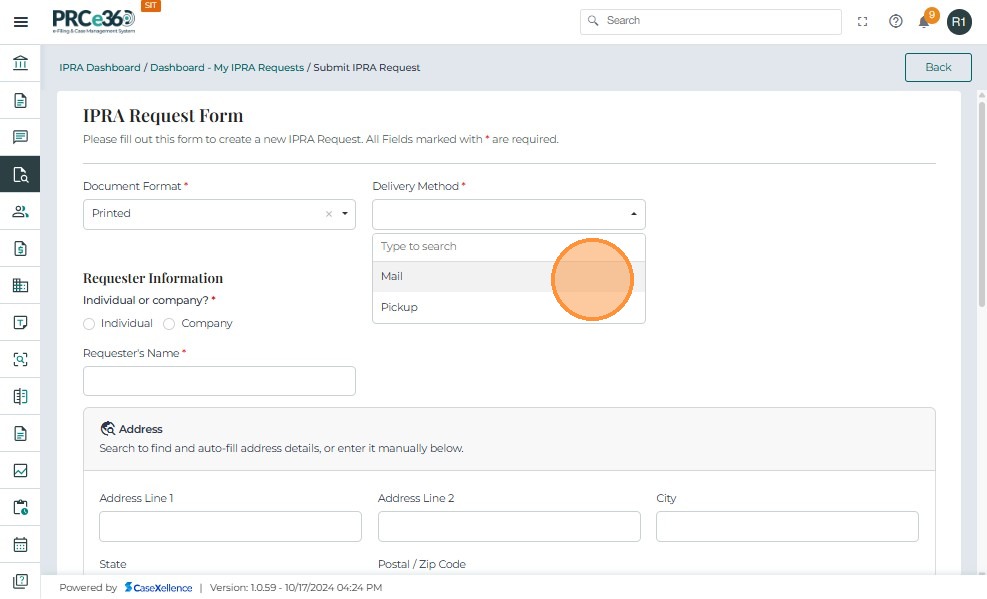
- Enter the Delivery Method (e.g., mail, in-person pickup).
Requester Information
-
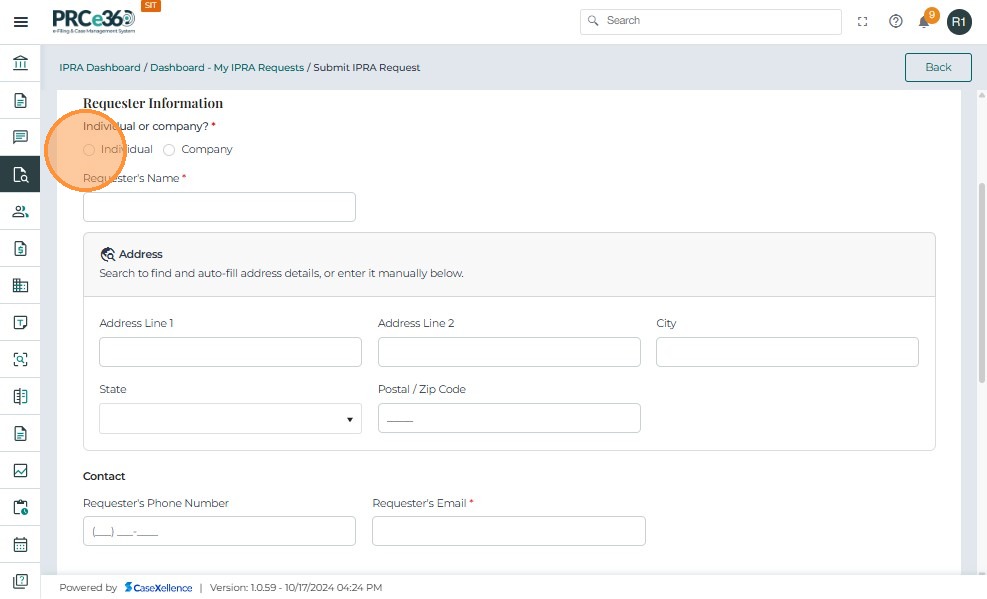
If the request is from an individual, select Individual.
-
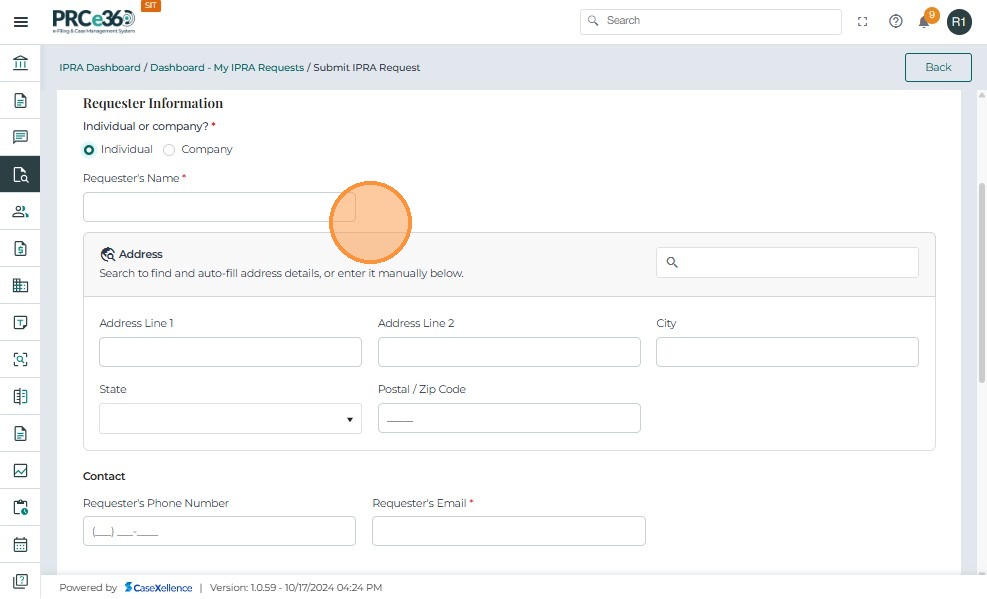
The **Requester's Name and address ** field is automatically populated with the logged-in user's name.
-
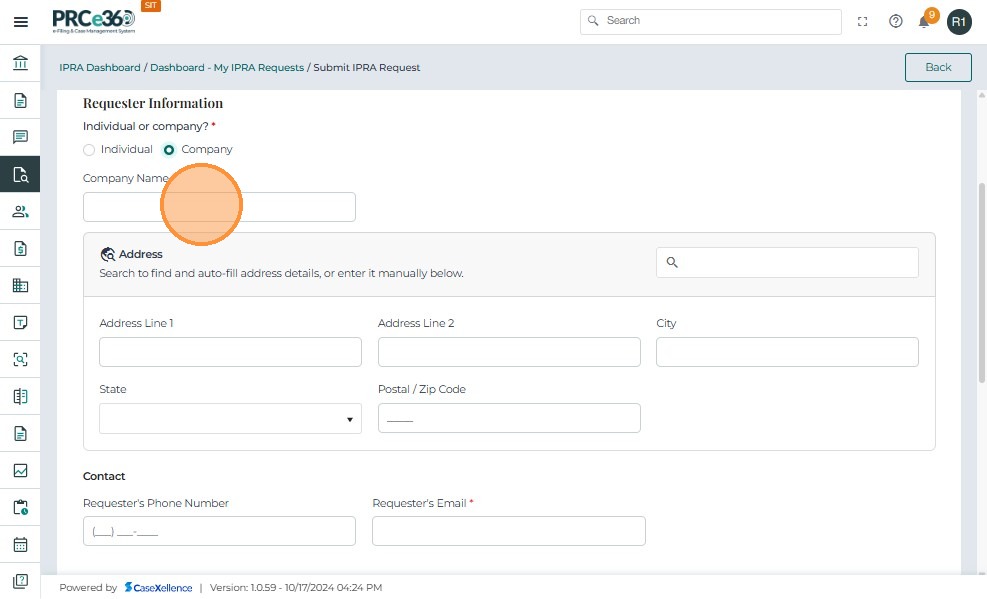
If the request is from an organization, select Company.
-
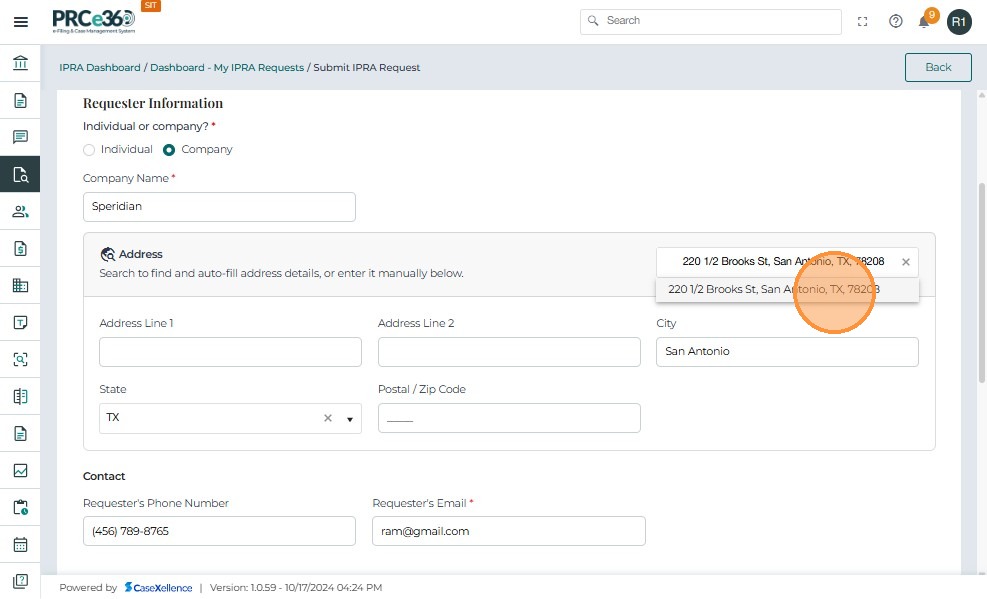
Enter Company Name and related details for the company or organization.
-
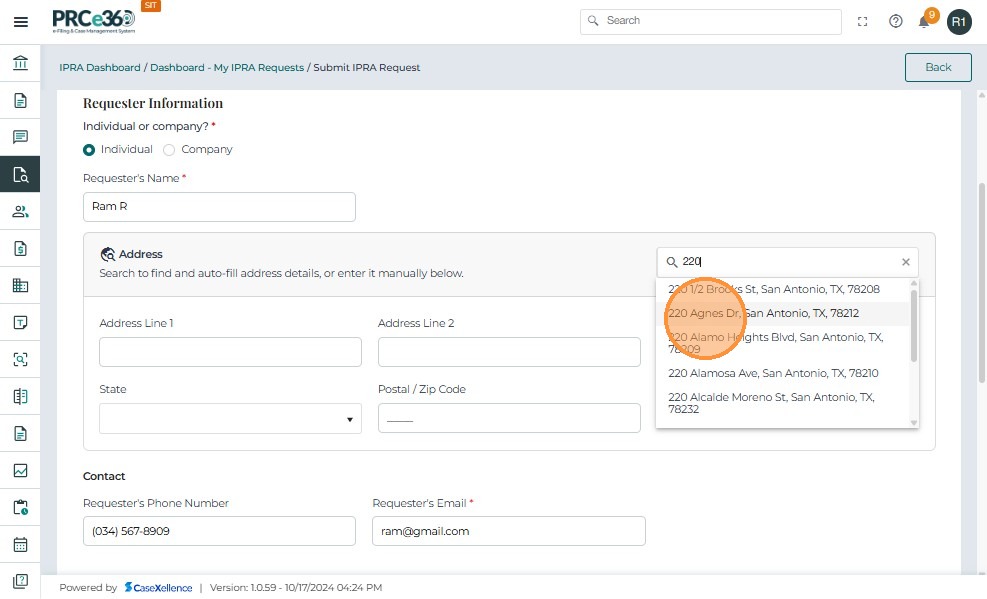
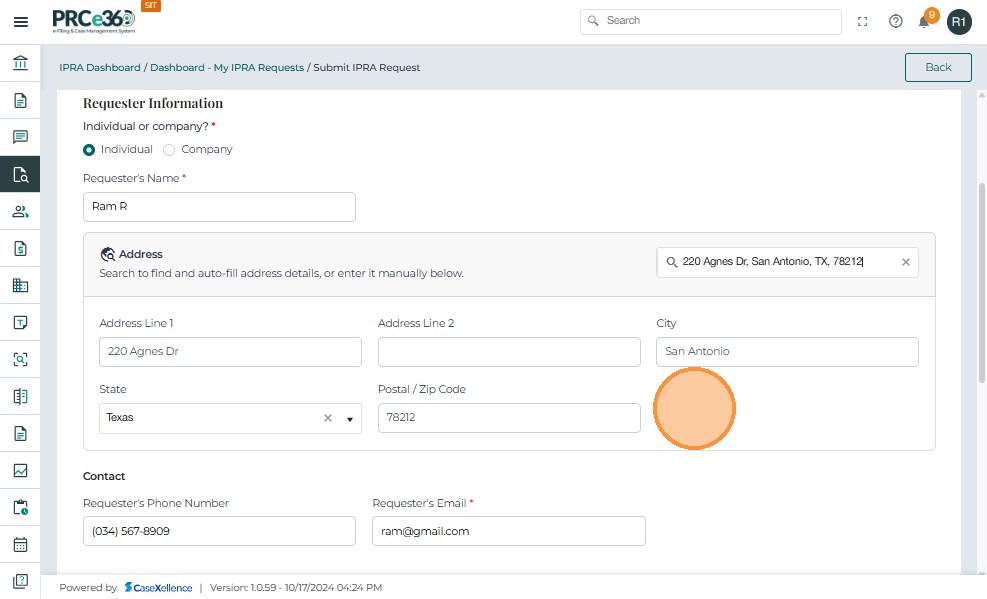
Using the address search option, users can search the address and the remaining fields will autopopulate.
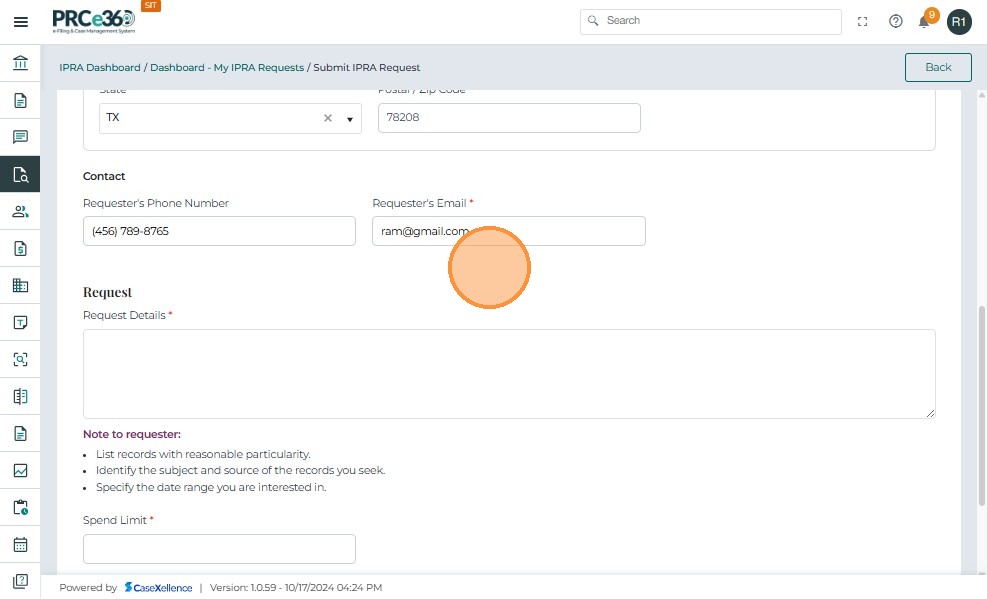
- Enter the requester's Email address and contact details .
Request Details
-
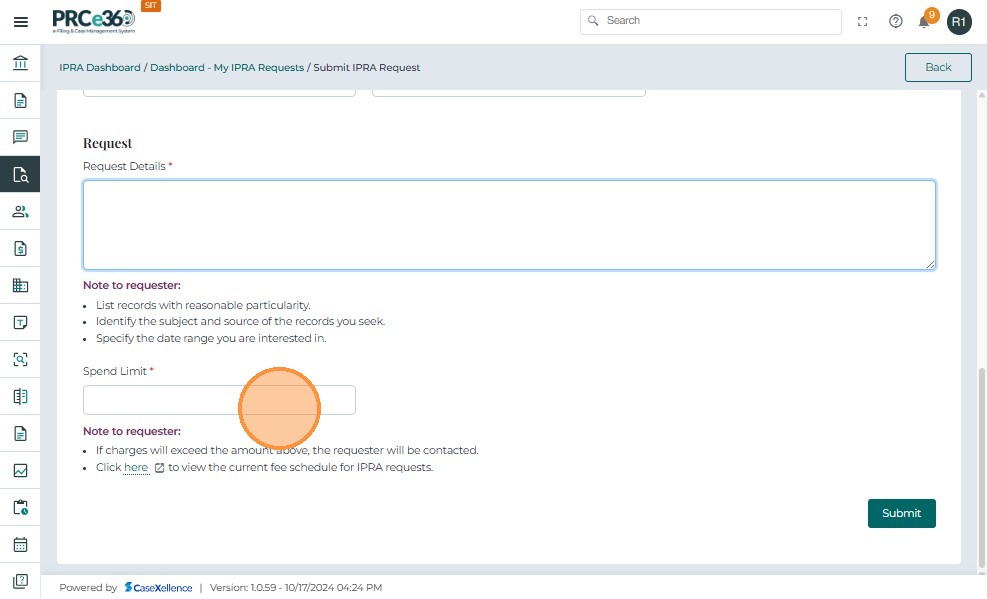
Enter the request details, describing the records being requested.

-
Enter the spend limit amount, if applicable.
Submit the Request
-
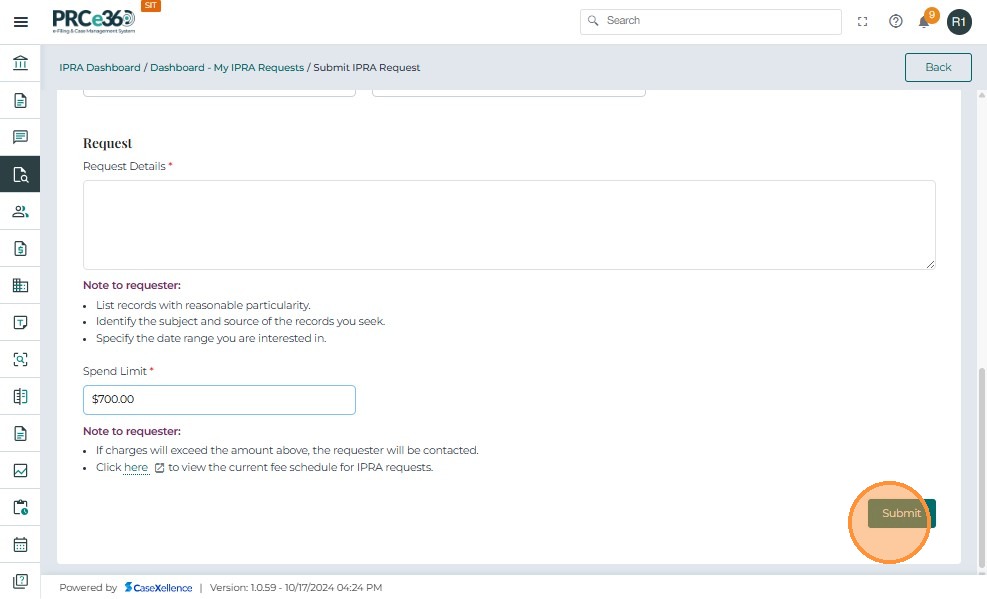
Click Submit once all details have been entered and reviewed.
-
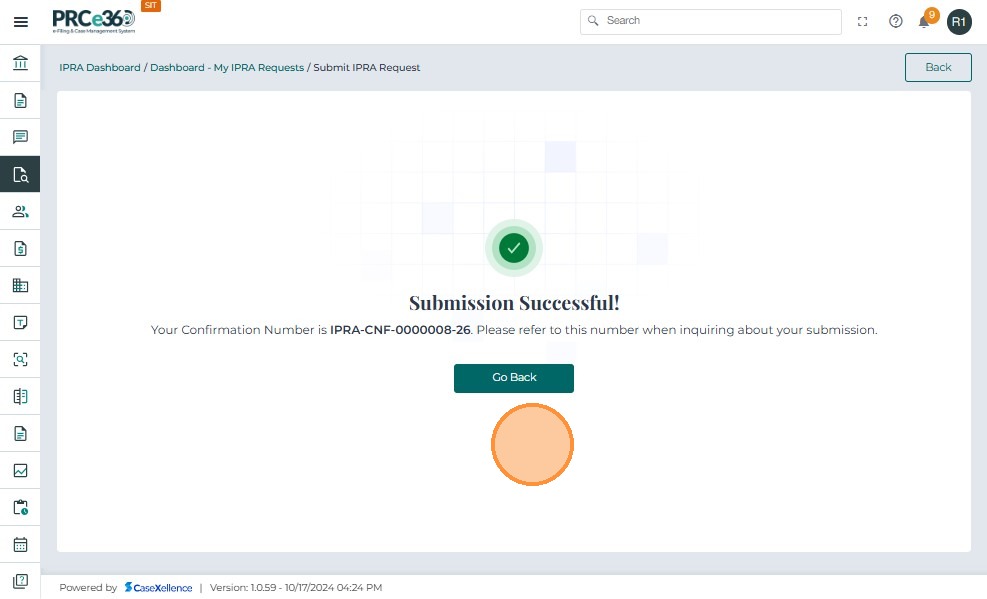
The submission is processed successfully and a Confirmation Number is generated.
-
Click Go Back to return to the IPRA dashboard.
View Submitted IPRA Requests
-
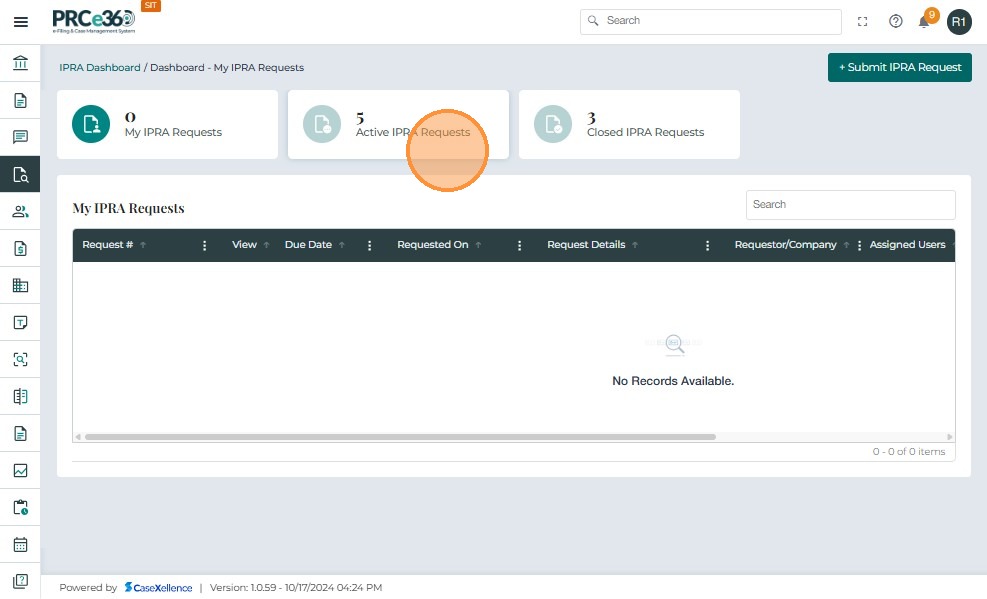
Click the ** Active IPRA Requests** tile to view all IPRA requests.
-
All IPRA requests are listed in a grid.
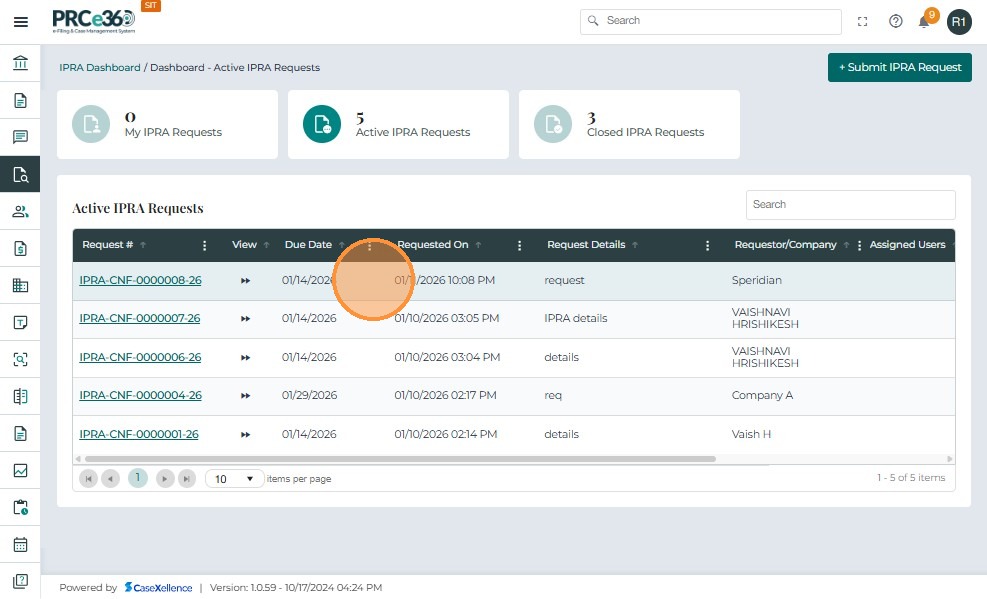
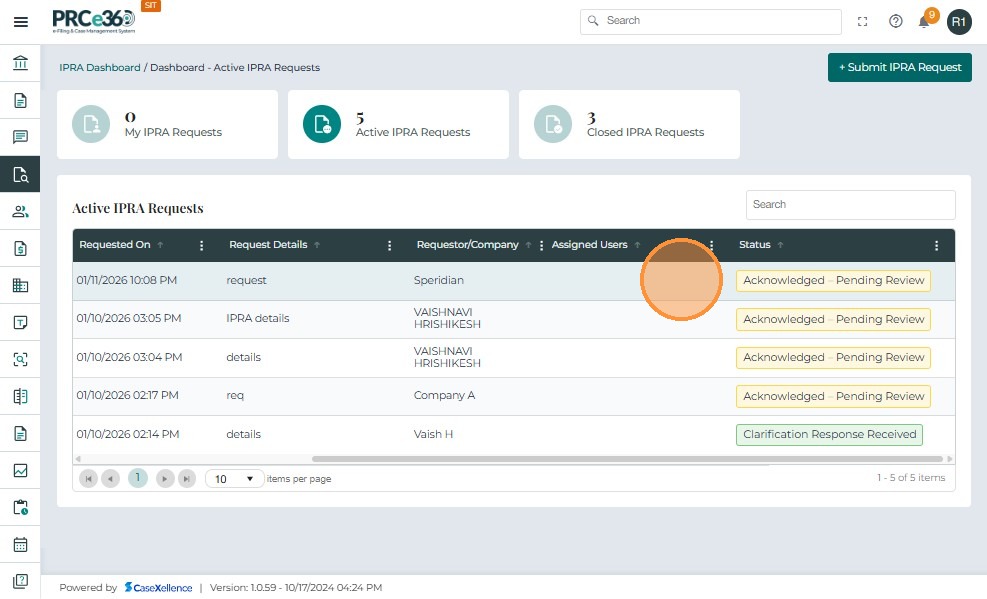
Grid Columns:
-
Request # – A unique identifier/reference number assigned to the IPRA request.
-
Due Date and Time – The due date and time for the request.
-
Requested On – The date and time the request was submitted.
-
Request Details – A summary of the requester's details and request description.
-
Requester – The person or organization that submitted the request.
-
Status – The current status of the request.
-
Assigned Users – Users currently assigned to the case.
Search for a Request
-
Enter a Request # in the search bar to locate a specific IPRA request.
-
Click the Request # link to open the Case 360 view for that request.
- Newly submitted requests appear with a status of Acknowledged – Pending Review.